Accessibility and Input Devices on the Debian Desktop
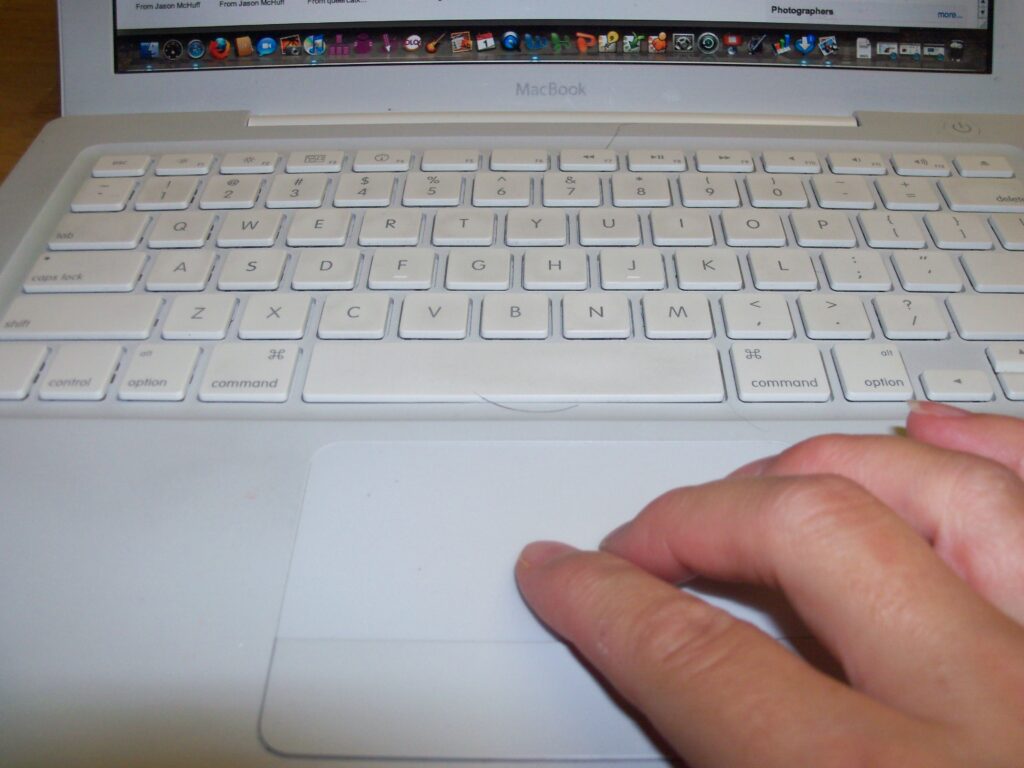
Begin with the user’s needs
A desktop should support the way a person actually works. Some users rely on keyboard navigation, others need larger text, screen readers or adjustments to pointer behavior. Debian provides multiple desktop environments, but their accessibility features and configuration tools differ. Review the installation guide and the documentation of the chosen desktop before deciding which environment to use.
Test the complete workflow
Check that login, application menus, file browsing and essential applications can be used with the preferred input method. If an accessibility feature works only after login, consider whether a different login manager or installation method is required. Keep a known working keyboard and mouse available when experimenting with alternative input devices.
Keep a usable configuration
Make adjustments incrementally and write down which settings changed. A readable configuration may need different font sizes, contrast and keyboard shortcuts for different applications. Ask the actual user to test common tasks rather than judging usability from appearance alone. For a shared computer, consider separate user profiles so that individual adjustments do not affect everyone else.
For related context, read getting started with Debian. Visit the Debian Planet homepage for more guides.