Setting Up Display Hardware on the Debian Desktop
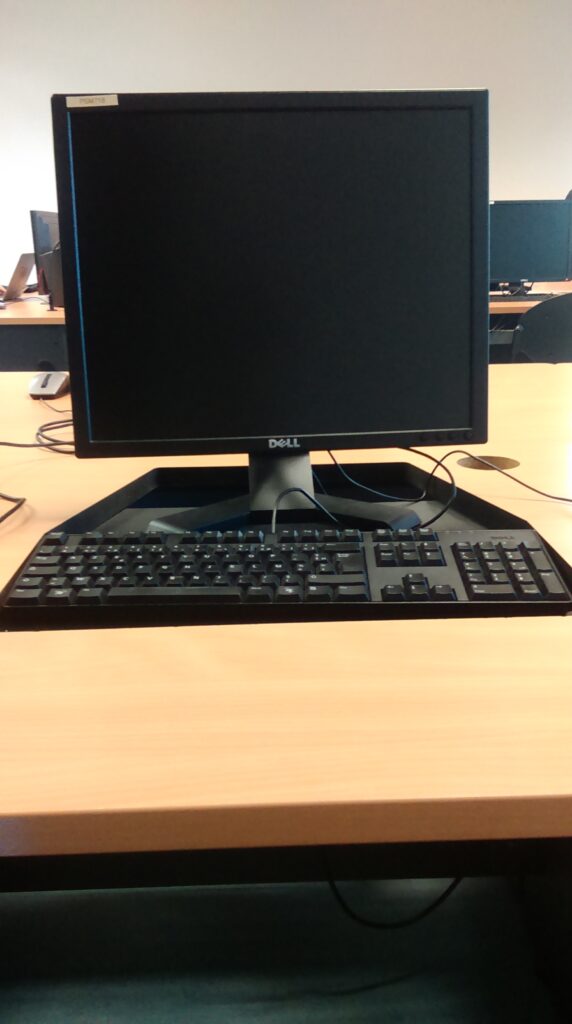
Start with the display and connector
A blank display or an unexpected resolution can have several causes. Check the cable, monitor input and supported display mode before changing software. If the computer has more than one graphics adapter, identify which adapter is connected to the monitor. A working text console or another display can help isolate the problem.
Distinguish the display stack
Debian desktop environments may use X11 or Wayland depending on the release and installed software. Configuration methods differ, so check which session is running before applying advice about display settings. The kernel driver, graphics libraries and desktop settings are related but separate layers. Replacing one without diagnosing the others may make troubleshooting harder.
Retain a working session
Use the desktop’s supported display settings when possible and test one change at a time. Keep notes about the original resolution and refresh rate. When investigating a driver issue, consult the documentation for the relevant graphics hardware and Debian release. A temporary test account or known working session can help determine whether the problem is system-wide or limited to a user configuration.
For related context, read GNOME desktop development. Visit the Debian Planet homepage for more guides.