Diagnosing Audio Devices and Sound Output on Debian
Identify the issue
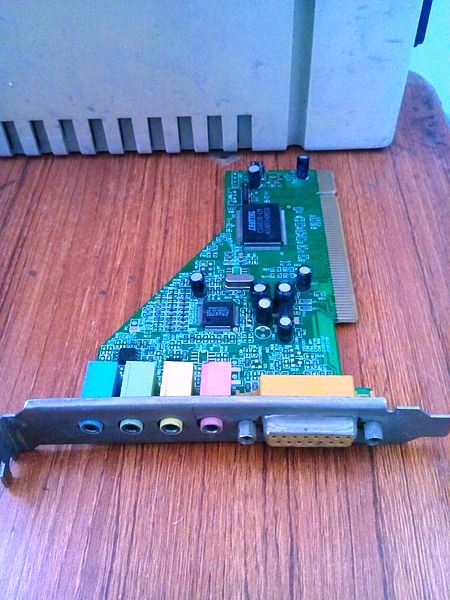
Before changing sound settings, distinguish a missing sound device from an application that has selected the wrong output. The kernel may detect a PCI or USB audio controller even when a desktop sound server has not configured it. Use the audio panel to identify the active device and test both its volume and mute state. If available, aplay -l lists playback devices visible to ALSA. Compare the result with the device shown in the desktop.
Check the system
If speakers are quiet but headphones work, test the physical connection and the output profile rather than replacing drivers immediately. A desktop may expose HDMI, analog and USB outputs simultaneously. Check whether the application is sending its stream to a different output. Record which device works before making changes, and keep the volume low during tests.
Document a reliable approach
Older Debian systems commonly relied more directly on ALSA or earlier sound interfaces; current releases may use PipeWire or PulseAudio as an additional layer. Follow instructions for your installed release. Avoid changing permissions or loading random drivers to bypass the sound server. A useful diagnostic report names the Debian release, audio controller, selected profile and whether the failure affects all applications.
For a related practical guide, read Linux multimedia applications. Browse more articles on the Debian Planet homepage.