Configuring Laptop Touchpads on the Debian Desktop
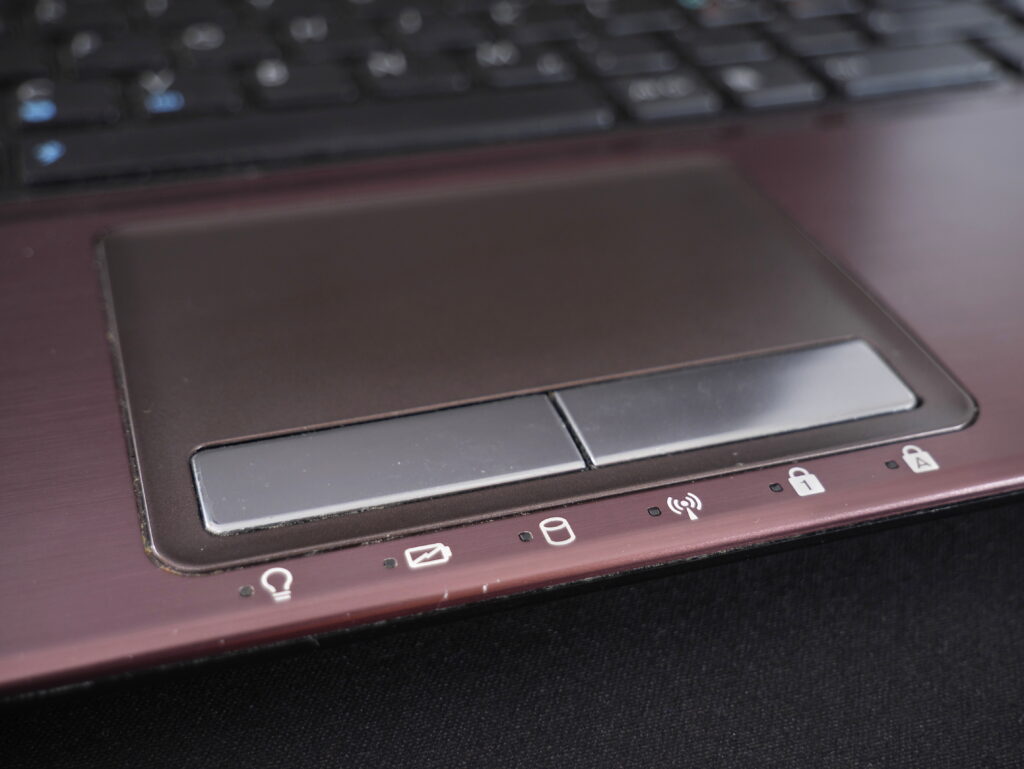
Identify the issue
A touchpad can be recognized by Debian yet feel awkward because its settings differ from those of another operating system. Start with the desktop’s pointing-device panel. Check pointer speed, tapping, two-finger scrolling and the option to disable the touchpad while typing. Make one change at a time and test it in the applications you actually use.
Check the system
If the touchpad does not respond, check whether a keyboard shortcut or firmware setting has disabled it. An external mouse can help you inspect the system without making permanent changes. Older Debian installations may use a Synaptics Xorg driver, whereas many newer installations use libinput. Instructions written for the older driver are not automatically applicable to the newer one.
Document a reliable approach
Save custom preferences or note them before editing system-wide configuration files. A desktop setting that works for one user may not be appropriate for another, especially where assistive devices are involved. If an issue persists, record the laptop model, desktop environment, Debian release and whether an external mouse works normally.
For a related practical guide, read desktop accessibility settings. Browse more articles on the Debian Planet homepage.