Handling Removable Storage Safely on Debian
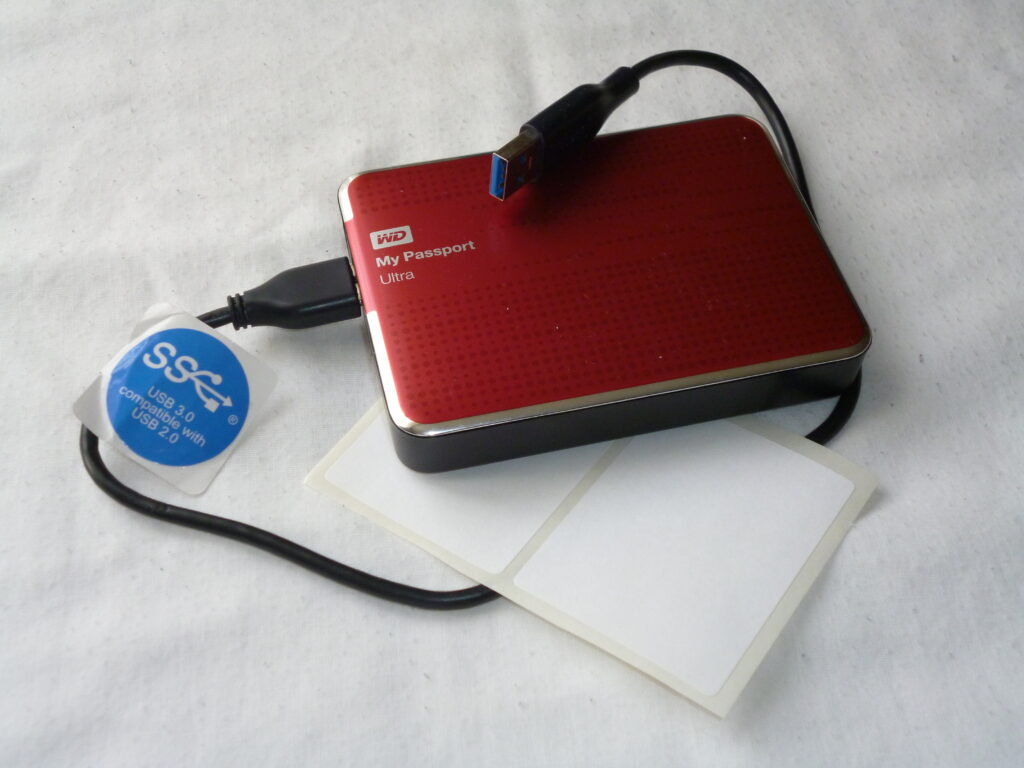
Identify the issue
A removable drive may contain several partitions, each with its own filesystem. Debian desktop environments often mount supported filesystems automatically, but server installations may require manual administration. Identify the device and mount point before copying or deleting files. The lsblk utility can show the relationship between disks and partitions.
Check the system
A drive mounted read-only may be protecting an inconsistent filesystem, or the installed system may lack support for writing that filesystem. Do not immediately force write access. If important data is involved, make a verified copy where possible and check the filesystem-specific documentation before attempting repairs. Never format a drive just because it does not appear in a file manager.
Document a reliable approach
After copying data, use the desktop eject or unmount function before disconnecting the drive. Wait until pending writes are complete. For frequently used drives, label the filesystem and record the intended purpose, but remember that a label alone does not uniquely identify a disk. Test important copies by opening them from the destination.
For a related practical guide, read planning reliable backups. Browse more articles on the Debian Planet homepage.